

WordPress Website Management: A Complete Guide for Business Owners
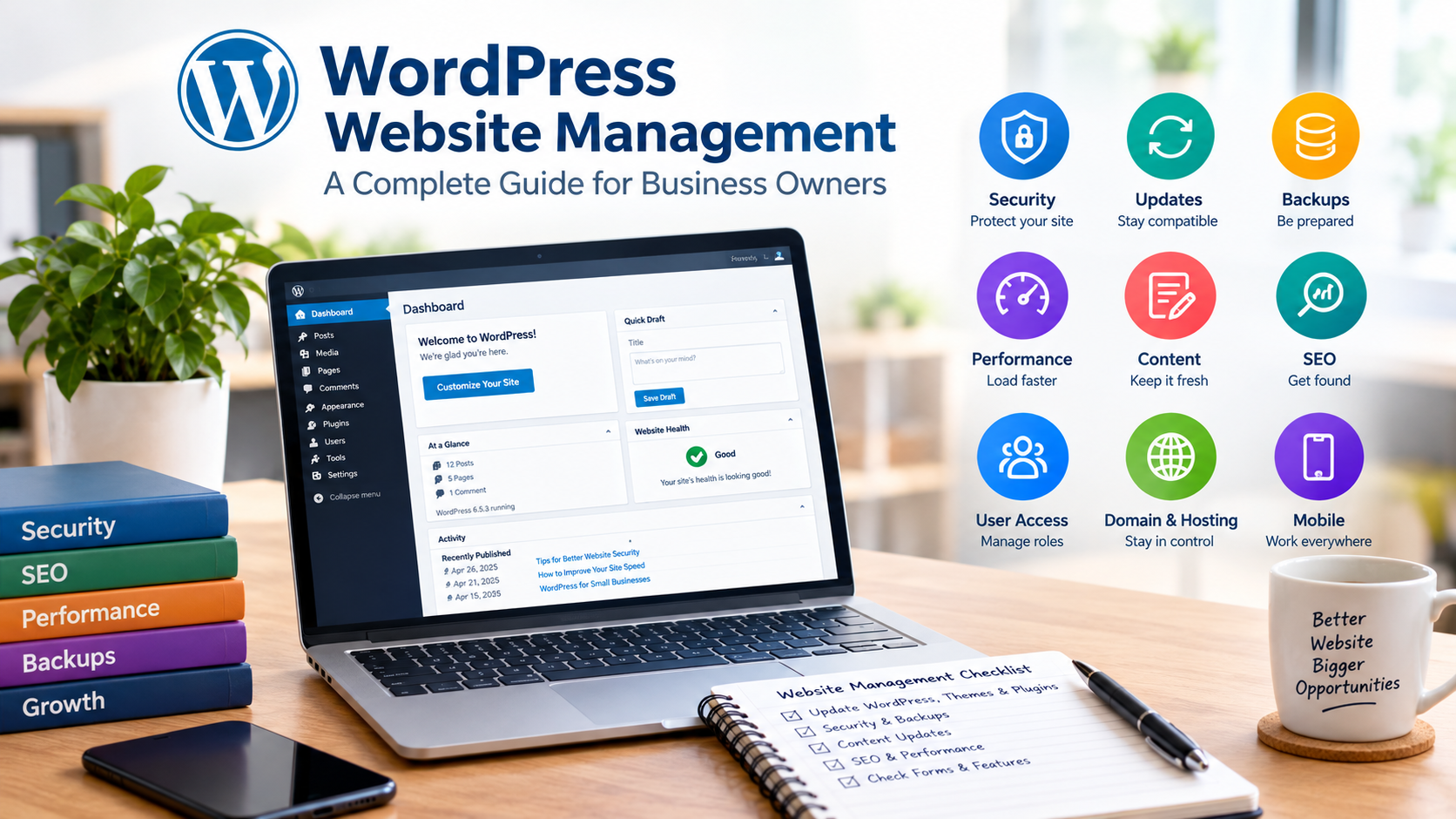
WordPress Website Management: A Complete Guide for Business Owners
In today’s competitive digital world, having a professional website is essential for businesses of all sizes. Whether you run a small local business, a service-based company, an online store, or a growing organisation, your website helps customers discover your brand, understand your services, and contact you.
WordPress is one of the most popular platforms for building websites because it offers flexibility, customisation options, and a wide range of themes and plugins. However, creating a website is only the first step. To keep it secure, functional, fast, and effective, you need proper WordPress website management.
Many business owners assume that once their website is developed and published, no further work is necessary. In reality, websites require regular updates, security monitoring, backups, content management, performance optimisation, and technical maintenance.
Without proper management, a WordPress website can become slow, vulnerable to security threats, outdated, or difficult to maintain.
This guide explains everything business owners need to know about WordPress website management, including essential maintenance tasks, security practices, SEO improvements, administrator access, and when to hire a professional.
1. What Is WordPress Website Management?
WordPress website management refers to the ongoing activities required to keep a WordPress website running smoothly and meeting your business objectives.
These activities go beyond designing pages or publishing blog posts. They include technical maintenance, website security, performance monitoring, content updates, search engine optimisation, and troubleshooting.
A properly managed website provides a better experience for visitors and helps business owners maintain a professional online presence.
Common WordPress management tasks include:
- Updating WordPress core software, themes, and plugins.
- Creating regular website backups.
- Monitoring website security and suspicious activity.
- Improving website loading speed.
- Managing pages, blog posts, images, and menus.
- Checking website functionality and contact forms.
- Managing administrator accounts and user permissions.
- Monitoring website uptime and technical errors.
- Improving on-page SEO and mobile usability.
- Renewing domain, hosting, and SSL-related services where applicable.
The exact requirements depend on the type of website. For example, an informational business website may need routine content updates and security checks, while an e-commerce website may require more frequent testing of checkout, payment processing, inventory, and customer account functionality.
2. Keep WordPress Core, Themes, and Plugins Updated
One of the most important parts of WordPress website management is keeping the platform and its components updated.
WordPress regularly releases updates that may introduce improvements, fix bugs, address security vulnerabilities, or enhance compatibility. Themes and plugins also receive updates from their developers.
Running outdated software can expose your website to known security issues and compatibility problems.
For example, an outdated contact form plugin may stop working correctly after another component is updated. An old theme may become incompatible with a newer WordPress release or fail to receive important security fixes.
How to manage updates safely
Before updating your website, follow these best practices:
- Create a recent backup of your website files and database.
- Review available updates and any relevant compatibility notes.
- Update WordPress, themes, and plugins using a suitable process.
- Check the website after updating.
- Test important functions such as contact forms, navigation, login, and checkout.
- Investigate any errors before considering the maintenance complete.
For important business websites, staging environments can help you test updates before applying them to the live website.
Avoid installing unnecessary plugins simply because they offer attractive features. Every additional component creates another item to maintain and assess for compatibility and security.
3. Protect Your WordPress Website from Security Threats
Website security is essential for every business. A compromised website can display malicious content, redirect visitors, expose customer information, or become unavailable.
WordPress security depends on several factors, including software updates, hosting configuration, password practices, access controls, backups, and monitoring.
Essential WordPress security practices
Use strong passwords. Create unique passwords for administrator accounts and avoid reusing passwords from other services.
Enable multi-factor authentication. Where available, use an additional authentication method to reduce the risk of unauthorised account access.
Limit administrator permissions. Give users only the permissions they need to perform their work.
Remove unused plugins and themes. Unnecessary software can increase maintenance requirements and potential security exposure. Remove components you no longer need, following a safe process.
Choose reputable plugins and themes. Review their maintenance history, compatibility, support, and source before installing them.
Use an appropriate security solution. Depending on your website and hosting environment, security plugins or hosting-level protection may help monitor suspicious activity and block certain threats.
Monitor your website regularly. Look for unexpected administrator accounts, unfamiliar files, suspicious redirects, and unusual changes to website content.
An SSL/TLS certificate should also be configured correctly so that visitors can connect to your website securely over HTTPS. An HTTPS connection is important, but it does not by itself guarantee that the website is free from malware or other vulnerabilities.
4. Create Regular Website Backups
Website backups are essential because technical problems can happen even when a website is managed carefully.
A failed update, accidental deletion, server problem, malware infection, or configuration error may damage your website. A reliable backup can help restore the website without rebuilding everything from scratch.
A complete WordPress backup generally includes:
- Website files: Themes, plugins, uploaded images, and WordPress files required for the site.
- Database: Pages, posts, settings, user information, and other stored website content.
- Configuration information: Relevant settings needed to restore the website correctly.
The ideal backup frequency depends on how often your website changes and how much data you can afford to lose. A business website with frequent enquiries or an online store may need more frequent backups than a small website that rarely changes.
Backup best practices
- Automate backups where possible.
- Store copies in a location separate from the main hosting account.
- Keep multiple recovery points according to your retention policy.
- Protect backup files against unauthorised access.
- Test restoration periodically to confirm that backups actually work.
Simply having a backup plugin installed is not enough. You should know where your backups are stored and how to restore them if the website becomes unavailable.
5. Improve Website Speed and Performance
Website speed affects the visitor experience and can influence how people interact with your business. Slow pages may frustrate visitors, reduce engagement, and make it harder for customers to complete enquiries or purchases.
WordPress performance depends on hosting quality, page design, images, themes, plugins, caching, database activity, and third-party scripts.
Practical ways to improve WordPress speed
Optimise images. Resize images to appropriate dimensions and use efficient formats such as WebP or AVIF where suitable.
Use caching. Appropriate page caching and browser caching can reduce the work required to serve repeat requests.
Choose reliable hosting. Hosting resources and server configuration can significantly affect loading times, especially during periods of increased traffic.
Reduce unnecessary plugins. Review whether every installed plugin is needed and remove unused components safely.
Use a lightweight theme. Choose a theme that supports your website’s requirements without adding unnecessary features or scripts.
Use a content delivery network when appropriate. A CDN can help deliver static resources efficiently to visitors in different locations.
Monitor performance regularly. Tools such as Google PageSpeed Insights can help identify issues affecting loading performance and user experience.
Do not focus only on achieving a perfect performance score. Prioritise improvements that make your actual website faster, more stable, and easier to use.
6. Manage WordPress Content Regularly
Your website content should accurately reflect your business, services, products, and contact information.
Outdated content can confuse visitors and reduce confidence in your company. For example, an old phone number, discontinued service, incorrect business hours, or expired offer may cause customers to miss important information.
Regular content management helps keep your website useful and relevant.
Important content management tasks
- Update service descriptions and pricing where applicable.
- Publish useful blog posts and educational resources.
- Replace outdated images and promotional banners.
- Check contact details, business hours, and location information.
- Remove or update expired offers.
- Review broken links and missing images.
- Improve page headings, readability, and calls to action.
- Check that forms deliver enquiries to the correct email address.
For WordPress websites, content can usually be managed through the admin dashboard. Business owners should understand how to edit their basic pages and posts, even if a developer handles the more technical aspects.
7. Manage WordPress Admin Access and User Roles
Administrator access is an important but sometimes overlooked part of website management.
The WordPress dashboard allows authorised users to manage website content, settings, plugins, themes, and other features according to their assigned permissions.
When a developer creates a website, the business owner should understand who controls the administrator accounts and how access can be recovered or transferred.
Some businesses give their developer full administrative access while retaining a separate account for the owner. Others use different user roles for marketing staff, content writers, editors, and support teams.
Understanding WordPress user roles
Common WordPress roles include:
- Administrator: Can manage most WordPress settings and administrative functions within the relevant site.
- Editor: Can manage and publish content, including content created by other users.
- Author: Can write, edit, and publish their own posts.
- Contributor: Can write and edit their own posts but cannot publish them independently.
- Subscriber: Typically has limited permissions, depending on the website configuration.
Custom roles and plugins may modify these permissions.
Why business owners should maintain appropriate access
Without suitable administrator access or a documented access arrangement, you may have difficulty updating your website, managing users, appointing another developer, or recovering control after a disagreement.
However, sharing the main hosting password is not always appropriate. If a developer hosts multiple client websites under one account, giving one customer the master credentials could expose other customers’ data.
A better arrangement is to keep the domain account under your business’s control, use separate WordPress user accounts, and establish suitable hosting access or a documented transfer process.
A professional developer should explain these arrangements clearly before work begins.
8. Keep Your Domain, Hosting, and SSL Services Under Control
Your WordPress website depends on more than WordPress itself. Domain registration, hosting, DNS configuration, and HTTPS certificates are also important parts of the overall setup.
The domain name is the address visitors use to access your website. Hosting provides the server environment where your website runs. DNS connects the domain name to the appropriate online services.
If these components are not managed properly, your website may become unavailable even when the WordPress installation itself is working correctly.
What business owners should check
Domain registration: Know which registrar manages your domain, when it expires, and who controls the registration account.
Hosting subscription: Understand where your website is hosted, how renewals are handled, and who is responsible for technical support.
DNS configuration: Keep a record of important DNS settings, particularly if you use a separate business email service.
SSL/TLS certificate: Confirm that HTTPS works correctly and that certificate renewal is handled appropriately.
Ownership and access: Ensure that your business has suitable control over its domain and a reliable way to access or transfer its website.
If a developer manages your hosting, ask whether your website has a separate hosting account or is part of a shared hosting arrangement. Shared hosting can be perfectly suitable, but the account structure should protect other clients while providing a clear path for your own website to be managed or transferred.
9. Manage WordPress SEO for Better Online Visibility
Search engine optimisation (SEO) helps search engines understand your website and can improve its visibility for relevant searches.
WordPress provides a flexible platform for SEO, but good results require more than installing an SEO plugin. Your content, website structure, technical configuration, and overall usefulness to visitors all matter.
Essential WordPress SEO management tasks
Optimise page titles and meta descriptions. Write clear, relevant titles and descriptions that accurately reflect each page.
Use a logical heading structure. Organise content with descriptive headings that make pages easier to understand.
Create useful content. Publish information that answers your audience’s questions and supports their needs.
Use descriptive URLs. Keep page addresses readable and relevant to their content.
Optimise images. Use suitable image sizes and meaningful alternative text when images convey information.
Check internal links. Connect related pages so visitors and search engines can discover relevant content.
Review indexing settings. Ensure that important pages are not accidentally blocked from search engines.
Monitor search performance. Tools such as Google Search Console can help identify indexing problems, search queries, and technical issues.
If you hire an SEO professional, provide the WordPress and other necessary access through appropriate accounts and permissions. The exact permissions depend on the tasks involved. An SEO specialist may not need full administrator access for every assignment.
10. Ensure Your Website Works Properly on Mobile Devices
Many visitors access business websites through smartphones and tablets. A website that looks attractive on a desktop computer may still have usability problems on smaller screens.
For example, buttons may be too small, text may be difficult to read, forms may be hard to complete, or navigation menus may not work correctly.
Mobile usability is especially important for local businesses and service providers because customers often search for contact details while travelling or looking for services nearby.
Check your website on different screen sizes and test:
- Navigation menus and dropdowns.
- Contact forms and enquiry buttons.
- Phone numbers and click-to-call links.
- Image sizes and text readability.
- Page layouts and spacing.
- Checkout and payment processes, if applicable.
Responsive WordPress themes can help, but you should still test the final website. A responsive design does not automatically guarantee that every page or plugin works correctly on every device.
11. Monitor Website Uptime and Functionality
Website management should include routine checks to confirm that your website is available and important features are working correctly.
A website may appear normal on the homepage while a contact form, payment gateway, login page, or another important function is broken.
For a service business, a non-working enquiry form can mean lost leads. For an e-commerce store, a checkout problem can prevent customers from completing purchases.
What should you monitor?
- Website availability and downtime.
- Contact forms and enquiry notifications.
- Important links and navigation.
- Payment and checkout functionality.
- Broken pages and server errors.
- SSL certificate warnings.
- Unusual website changes.
- Search engine indexing issues.
Automated monitoring tools can help detect certain problems, but they should complement regular manual testing.
If you operate an online store, consider testing the complete purchasing journey after major updates, including cart functionality, payment processing, order confirmation, and relevant email notifications.
12. Should You Manage WordPress Yourself or Hire a Professional?
The right approach depends on your technical knowledge, available time, website complexity, and business priorities.
Managing WordPress yourself
Self-management may be suitable if you operate a small website, publish content occasionally, and are comfortable handling routine updates.
Advantages include greater direct control and potentially lower ongoing management costs.
However, you must make time for backups, security checks, updates, troubleshooting, and performance monitoring.
Hiring a professional
A WordPress developer or maintenance provider can handle technical tasks such as updates, troubleshooting, security configuration, migrations, and performance optimisation.
This may be a better choice for businesses that rely heavily on their websites or do not have in-house technical expertise.
Before hiring a provider, clarify the services included in the agreement. Some maintenance plans cover software updates and backups, while others include security monitoring, content changes, SEO work, or technical support.
Also confirm who owns the domain, how hosting is arranged, which administrator access will be provided, and how the website can be transferred if the agreement ends.
The best arrangement is one in which you receive the technical support you need without losing appropriate control over your business assets.
13. WordPress Website Management Checklist for Business Owners
Use this checklist to organise your website maintenance routine.
Weekly checks
-
Check that the website is accessible.
-
Test important contact forms and business functions.
-
Review security alerts and unusual activity.
-
Check for urgent software updates.
-
Confirm that recent backups are completing successfully.
Monthly checks
-
Review WordPress core, theme, and plugin updates.
-
Check website speed and mobile usability.
-
Review important pages and business information.
-
Check broken links and missing images.
-
Review user accounts and remove unnecessary access.
-
Check domain and hosting renewal information.
-
Review SEO performance and indexing issues.
Periodic checks
-
Test website restoration from a backup.
-
Review hosting resources and service requirements.
-
Update technical documentation.
-
Confirm account recovery details and security settings.
-
Review whether your website meets changing business needs.
-
Verify that your business can access or transfer its website assets.
The frequency of each task should be adjusted according to your website’s risk level, update frequency, and business requirements.
WordPress website management is an ongoing responsibility that helps protect your online business and keep your website working effectively.
From software updates and security monitoring to content management, SEO, backups, and administrator access, every part of your website needs appropriate attention. A well-managed website can provide a better user experience, support your marketing efforts, and reduce the risk of avoidable technical problems.
Business owners should also understand that website management is not only about technical maintenance. It involves knowing who controls the domain, where the website is hosted, how backups are stored, and how access can be transferred when necessary.
You do not need to perform every task yourself. You can work with a professional WordPress developer or maintenance agency while retaining suitable ownership, access, and oversight.
The key is to manage your WordPress website proactively rather than waiting for something to go wrong. With regular maintenance, secure account management, reliable backups, and a clear agreement with your service provider, you can build a stronger and more dependable online presence for your business.

Bijoy
Author